Command History Window

Contents
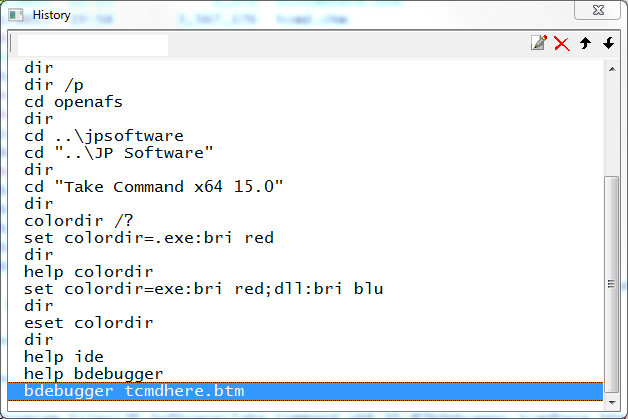
You can view the command history in a scrollable popup window, and select the command to re-execute or modify from those displayed in the window. The directory history window includes a toolbar with buttons for editing, deleting, and moving lines.
To activate the command history window press PgUp or PgDn at the command line. A popup window will appear, with the command you most recently executed marked with a highlight. (If you just finished re-executing a command from the history, then the next command in sequence will be highlighted.)
You can view a "filtered" history window by typing some characters on the command line, then pressing PgUp or PgDn. Only those commands matching the typed characters will be displayed in the window.
You can search for a specific command by entering a string (including wildcards or regular expressions) in the edit window on the title bar. TCC will remove non-matching lines from the window. See Popup Windows for details.
Command History Window Keys:
| Up | Scroll the display up one line. |
| Down | Scroll the display down one line. |
| Left | Scroll the display left 4 columns. |
| Right | Scroll the display right 4 columns. |
| PgUp | Scroll the display up one page. |
| PgDn | Scroll the display down one page. |
| Home | Go to the beginning of the list. |
| End | Go to the end of the list. |
| Ctrl-Enter | Move the selected line to the command line for editing |
| Enter | Execute the selected line |
| Ctrl-C | Copy the selected line to the clipboard |
| Ctrl-D or Del | Delete the selected line from the list |
| Ctrl-E | Edit the selected line in the history window |
| Ctrl-Up | Move the selected line up one row |
| Ctrl-Down | Move the selected line down one row |
| Esc | Close the window without making a selection. |
Note: The keystrokes shown above are the default values. See Key Mapping Directives for details on how to assign different keystrokes.
Once you have selected a command in the history window, press Enter or double-click with the mouse to execute it immediately. Press Ctrl-Enter or hold down the Ctrl key while you double-click with the mouse to move the line to the prompt for editing.
You can move and/or resize the history window. TCC will save the changes and use the new position the next time the command history window is invoked. You can also change the keys used in the window with key mapping directives.