Tab Windows

Contents
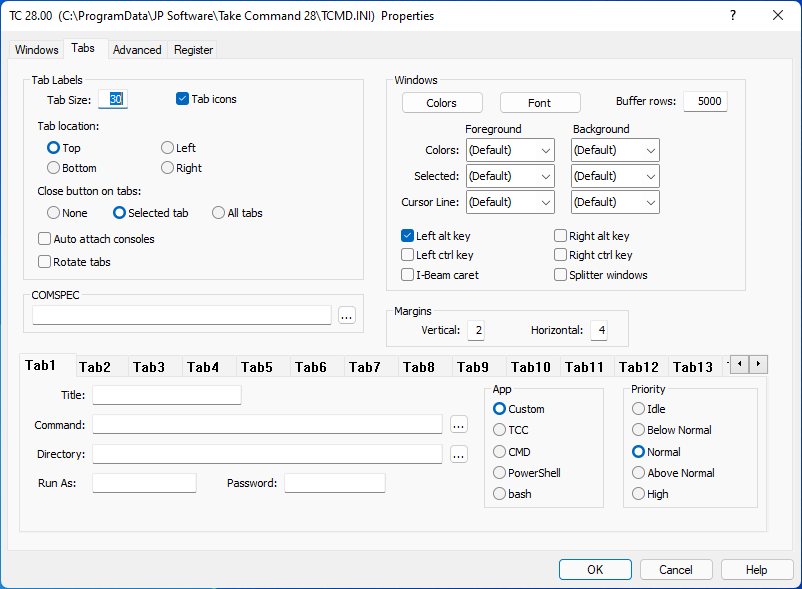
If you are not familiar with the purpose or use of the Tab Windows configuration dialog, review the main configuration dialogs topic before continuing.
Tabs:
Tab Size sets the maximum length of the tab label text (in characters).
Tab Icons displays the application's icon in the tab label.
You can position the tab labels with the Top, Bottom, Left, and Right options.
Close Tab Button defines the close button (X) on the tab labels. You must restart Take Command for this option to take effect.
Auto Attach Consoles converts all new console windows on the same virtual desktop as Take Command to Take Command tab windows.
Rotate Tabs rotates the tab labels 90 degrees. This allows you to fit many more tabs in the window, at the cost of a reduced window size.
COMSPEC sets the program you want to start in new tabs. If no COMSPEC option is set, Take Command will run its default command processor (TCC).
Windows:
Tab Colors lets you define a custom color palette to use in the tab windows. Take Command will first try to retrieve a color palette from the console. If the console app is using a custom palette, Take Command will use that palette for the tab window. If there is no custom palette defined for this console, Take Command will use the palette set by Tab Colors.
The Font button opens a standard Windows font dialog that lets you select the font, point size, and font style for Take Command tab windows.
Colors lets you select the default foreground and background colors for text in the Take Command tab windows. (These colors will be overwritten if the application in the tab window sets its own colors.)
Selected lets you select the colors for selected text in the Take Command tab windows. (The selected text colors defaults to the inverse of the current color.)
Cursor Line lets you select the color for the current cursor row in Take Command tab windows.
Buffer Rows sets the number of rows in the console-mode screen buffer.
Left Alt Key sends the left Alt key to Take Command, so you can use it to invoke the Take Command menu or scroll the window. (The right Alt key will be passed to the application in the tab window.)
Right Alt Key sends the right Alt key to Take Command, so you can use it to invoke the Take Command menu or scroll the window. (The left Alt key will be passed to the application in the tab window.)
Left Ctrl Key sends the left Ctrl key to Take Command. (The right Ctrl key will be passed to the application in the tab window.)
Right Ctrl Key sends the right Ctrl key to Take Command. (The left Ctrl key will be passed to the application in the tab window.)
I-Beam Caret uses the I-Beam (vertical) caret in tab windows instead of the console underline (horizontal) caret.
Splitter Windows enables the splitter option on the horizontal scrollbar in tab windows.
ANSI colors enables ANSI escape sequence support for all console applications running in Take Command tab windows. If you are running Windows 10 or later, Take Command will use the built-in console ANSI support.
Margins:
Set the horizontal and vertical border margin values (in pixels) for Take Command tab windows.
Startup Tabs:
The Startup Tabs specify programs to run in each tab at startup. You can specify an optional title, the command line (the name of the program and any optional arguments), an optional startup directory, and optionally the user context where the tab should run. You can define up to 25 startup tabs.
The App option allows you to prepopulate the Title and Command fields with the appropriate values for TCC, CMD, PowerShell, and bash.
You can set the priority level for the processes in the tab:
| Idle | Idle priority (only executes when no higher priority task is scheduled) |
| Below | Below normal priority |
| Normal | Normal (default) priority |
| Above | Above normal priority |
| High | High priority |