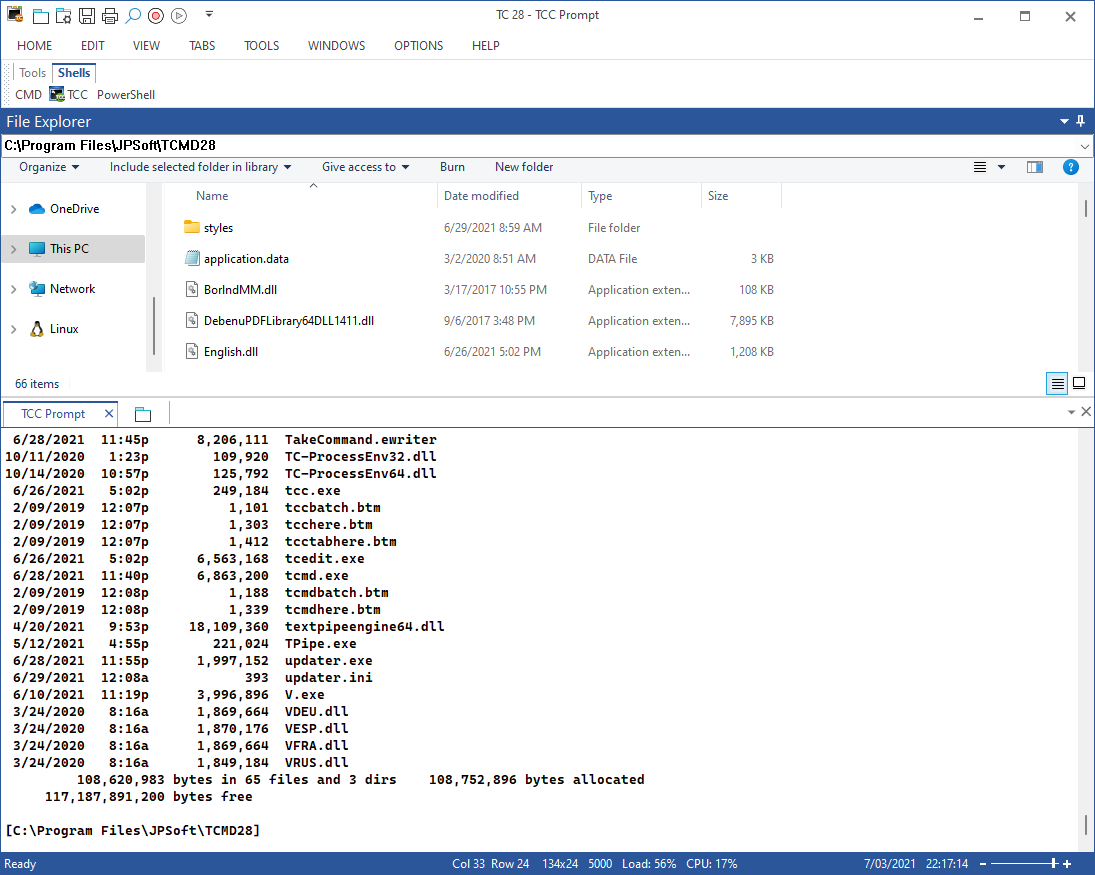
The Take Command window has seven parts:
| 1. | The Title Bar is the same as the one used in most Windows applications, with a control menu button on the left and the minimize, maximize, and close buttons on the right. You can also adjust the size of the Take Command window using standard window techniques, but see Resizing the Take Command Window for information about how Take Command's display changes when you do so. |
| 3. | The Tabbed Toolbar is an optional tool bar that you can use to execute internal or external commands, aliases, or batch files with the click of a mouse (or an accelerator key). You can define up to 20 toolbar tabs, each with up to 50 buttons. To create buttons for the tab toolbar, right click on the toolbar and select "Add Button" or "Add Tab". This selection displays the tool bar dialog. You can also configure the tab toolbar from TCC with the TCTOOLBAR command. |
4. The File Explorer window shows a tree view of your desktop on the left and the contents of the selected folder on the right. You can display the files in a number of ways (large icons, small icons, list, and details views).
| 5. | The Command Input window allows you to create and edit commands before sending them to the active tab window. This is not limited to entering something at the command prompt; you can feed strings anywhere a console app is expecting input. You can scroll back to previous lines, edit, and reexecute them. The Command Input window also has full undo/redo (up to 31 levels), drag and drop, and both mouse and keyboard text selection. |
| 6. | The Tab Windows run the Take Command Console, or any other Windows console application (including CMD, PowerShell, or bash). You can use the scroll bars or the Alt cursor keys to view text that has scrolled through the window. You can also save the contents of a tab window and scrollback buffer to a file, copy text from a tab Window to the clipboard, and copy text from the clipboard or from the tab window scrollback buffer to the command line. See Highlighting and Copying Text for information about saving and retrieving text in the tab window and The Command Line for complete details about using the Take Command console command line. |
| 7. | Finally, the Status Bar at the bottom of the Take Command window displays information about your system: |
 | Tooltips for the menu selections |
| The tab window size (columns x rows) |
| The number of rows in the screen buffer |
| The CPU usage (0 - 100%) |
| The memory load (0-100%) |
| The state of the Caps Lock key |
| The state of the Num Lock key |
| The state of the Scroll Lock key |
| The current date |
| The current time |
| A slider control to change the Take Command transparency |
If you find the "I-Beam" cursor in the Take Command tab windows difficult to see, you can change it in the Tabs page of the configuration dialog to force the use of an arrow cursor in all parts of the window.