The Take Command window has two toolbars: the Explorer toolbar and the Tabbed toolbar.
You can hide or show the toolbars with the View / Toolbars menu entry, and you can detach and dock a toolbar by clicking on the left edge of the toolbar and dragging it to its new position. The new position of the toolbar will be saved when you close Take Command and restored when you restart.
Explorer Toolbar
The Explorer Toolbar has seven default controls:
•The V button starts the file viewer (VIEW in TCC).
•The Edit/Debug button opens the TCC batch debugger in a new TCC tab window.
•The Find combo box searches for text in the current tab window's buffer.
•The Views button toggles the view type in the List View window between Large Icons, List, and Details). You can also select the view type from a drop-down list by clicking on the down arrow.
•The Select Folder combo box changes the current directory for the Folders and List View windows.
•The Up button changes to the parent directory in the Folders and List View windows. If you're already at the root directory of a disk drive, Up will take you to Computer (in Vista or later) or My Computer (in XP).
•The Filter combo box allows you to enter wildcards or regular expressions to filter the directories and files displayed in the List View window. You can enter multiple wildcards by enclosing each argument in double quotes and separating them with a comma. For example:
"*.cmd", "*.txt", "*.doc"
To enter a regular expression in the Filter combo box, precede it with two colons. For example:
::/c
You can specify attributes (/A:...) and ranges in the Filter combo box. (The syntax is the same as in TCC.) The attribute and range switches must come before the filename wildcards or regular expressions.
You can also set the filter from TCC with the TCFILTER command.
The Filter combo box will save its last 10 entries in each session and restore them when Take Command restarts.
You can customize the Explorer Toolbar by clicking on the button on the right edge and selecting Add or Remove Buttons, or by right-clicking on the blank space to the right of the toolbar and selecting Customize.
Tabbed Toolbar
The Tabbed Toolbar is an optional tabbed tool bar that you can use to execute internal or external commands, aliases, or batch files with the click of a mouse (or an accelerator key). You can define up to 20 tabs, each with up to 50 toolbar buttons. If you have only defined one tab, Take Command will hide the tab (to save screen space).
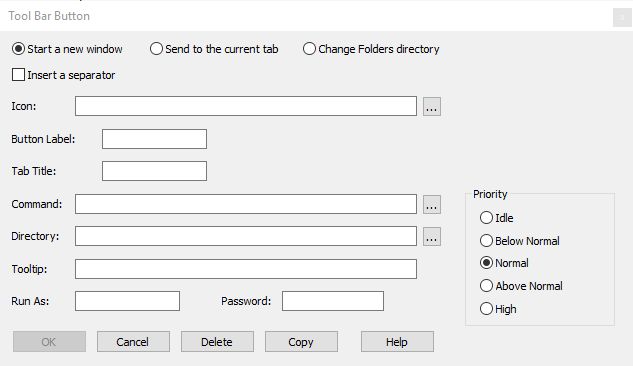
To create buttons for the tabbed toolbar, right click on the toolbar. You can modify or delete a button by right clicking on it. A dialog will appear to let you define the button label, tab title, command, and startup directory. There is a Copy option on the toolbar dialog which will duplicate the selected button so you can quickly create multiple variants of a command. You can also configure the tab toolbar from TCC with the TCTOOLBAR command.
You can reorder toolbar buttons by holding down the Alt key, pressing the left mouse button, and dragging a button to a new location.