Advanced Directives

Contents
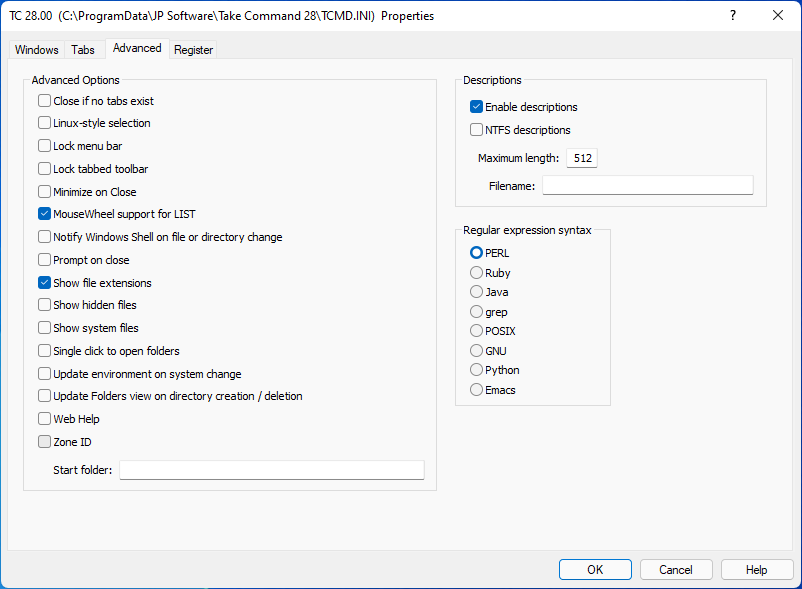
If you are not familiar with the purpose or use of the Advanced Directives configuration dialog, review the main configuration dialogs topic before continuing.
Advanced Options:
Close if No Tabs Exist : If disabled, Take Command won't close if there are no tab windows open.
Linux-style Selection : Copy selected text automatically to the clipboard when the left mouse button is released. If you have the shift key down, the selected text will be appended to the clipboard.
Lock Menu Bar : Locks the menu in place so it cannot be moved or docked. (Takes effect after restarting Take Command.)
Lock Tabbed Toolbar : Locks the tabbed toolbar in place so it cannot be moved or docked. (Takes effect after restarting Take Command.)
Minimize on Close : If enabled, clicking on the Close button or pressing Alt-F4 will minimize Take Command instead of closing it. To close Take Command, select File / Exit.
MouseWheel Support for LIST : If enabled, Take Command will pass the mouse wheel messages to TCC when it detects that TCC is executing its internal LIST command.
Notify Windows Shell on File or Directory Change : Notify the system shell when changing files or directories.
Prompt on Close : Take Command will pop up a confirmation message box when exiting.
Show File Extensions : If enabled, File Explorer will always show file extensions even if they are disabled in the Windows Shell folder properties.
Show Hidden Files : If enabled, the File Explorer window will show hidden files. (You must restart Take Command after changing this option.)
Single Click to Open Folders : (Obsolete)
Update Environment on System Change : If enabled, Take Command will monitor the WM_SETTINGCHANGE message and if the environment is specified, update the environment from the User, Volatile, and System registry entries. The updates are done whenever Take Command displays a prompt (to prevent the environment from changing in the middle of a batch file).
Update Folder View on Directory Creation / Deletion : Obsolete. The File Explorer window will always be updated when folders or directories are added, deleted, or renamed.
Web Help : If enabled, Take Command will use the browser-based help (at https://jpsoft.com/help/index.htm) instead of the local help. Using web help allows you to add comments to the help topics.
Win64 File System Redirection : If disabled, overrides the default Win64 behavior of remapping windows\system32 calls to windows\SysWOW64.
Zone ID : Set the NTFS Zone ID security when running executables downloaded from the Internet. (Note that CMD never checks for the Zone ID, so setting it may introduce a minor incompatibility.)
Start Folder : The initial directory to display in the File Explorer window.
Descriptions:
NTFS Descriptions : If set, Take Command uses the Comments field in the NTFS SummaryInformation stream for each file to hold its description, instead of the DESCRIPT.ION file. The advantages are that the description will always remain with the file regardless of what program copies, moves, or renames it. The disadvantage is that you cannot attach a description to directories.
Maximum Length : Set the description length limit. The allowable range is 20 to 512 characters.
Filename : Sets the file name in which to store file descriptions. The default file name is DESCRIPT.ION.
Regular Expression Syntax:
Sets the regular expression syntax.