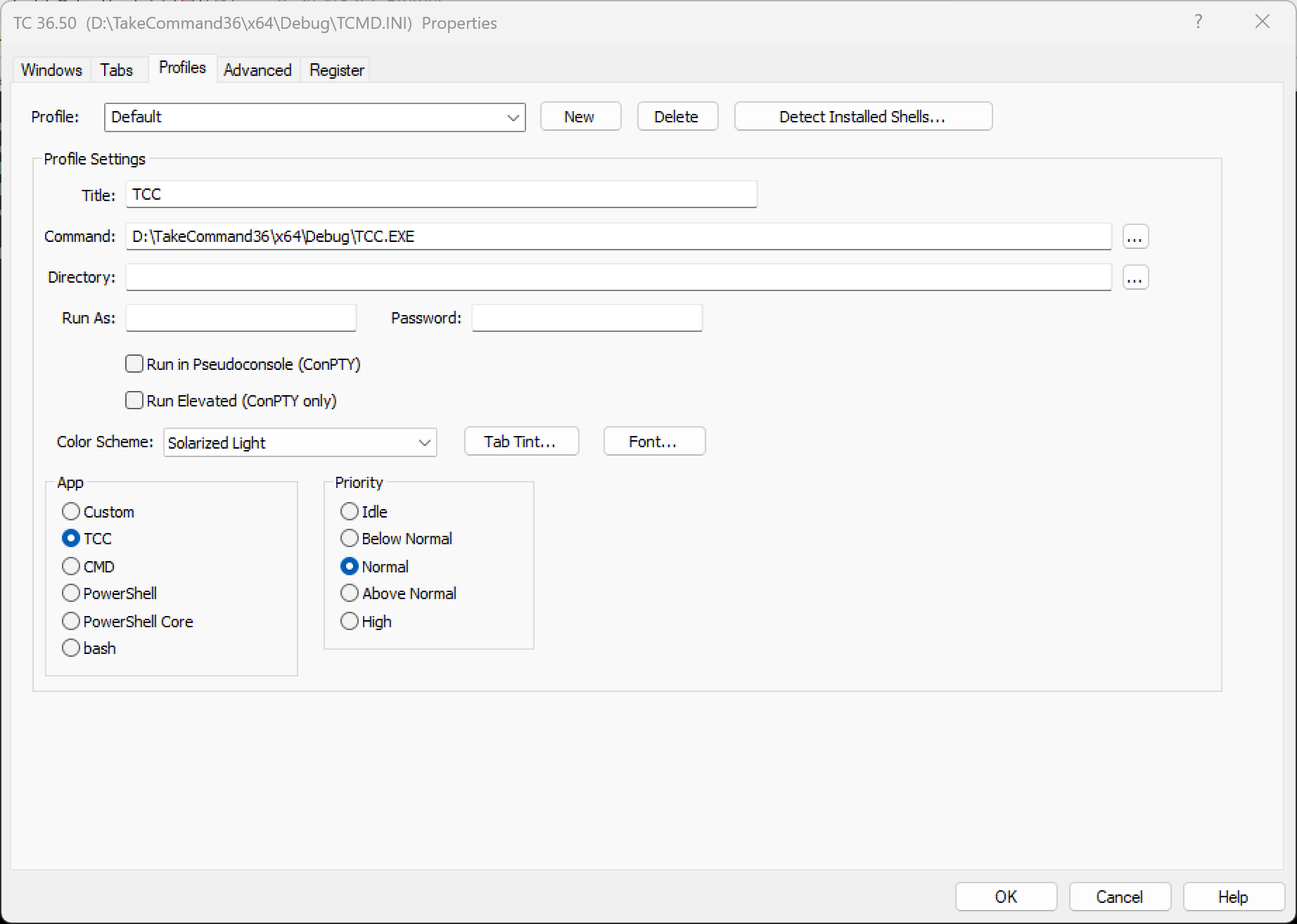
If you are not familiar with the purpose or use of the Profiles configuration dialog, review the main configuration dialogs topic before continuing.
A profile is a named, reusable tab definition. Each profile stores a command line plus a set of options (title, startup directory, user context, colors, font, and more) so that you can open a preconfigured tab window with a single click or keystroke.
Profiles are saved in the TCMD.INI file as [Profile.name] sections. Unlike the Startup Tabs, which open automatically when *Take Command* starts, a profile opens a new tab only when you ask for it — from the Profiles menu, with a keyboard
shortcut, or with the [START /PROFILE=name command in TCC. You can define as many profiles as you like.
Managing profiles
Profile selects the profile to edit. To change an existing profile, choose its name from the drop-down list and edit the fields below. The dialog saves the current profile automatically when you switch to another profile or close the dialog with **OK**.
New creates a profile. Type a unique name in the Profile box and then click New to add it and clear the fields for editing.
Delete removes the selected profile (and its **[Profile.*name*]** section in TCMD.INI) after you confirm.
Detect Installed Shells will search your system for CMD, PowerShell, PowerShell Core, WSL, and Git shells and create profiles for them.
Profile options
App prepopulates the Title and Command fields with the appropriate values for TCC, CMD, PowerShell, PowerShell Core, or bash. Select Custom to enter your own command line.
Title sets the text displayed on the tab label. If you leave it blank, Take Command uses the title set by the application running in the tab.
Command is the command line to run in the tab — the name of the program and any optional arguments. If you leave it blank, Take Command runs its default command processor (TCC).
Directory sets the startup (working) directory for the tab. If you leave it blank, the tab starts in the default directory.
RunAs and Password let you start the tab in the context of a different user. Enter the user name (in *user* or *domain\user* form) and password. The password is encrypted before it is stored in TCMD.INI.
Run in Pseudoconsole (ConPTY) starts the application in the tab using a Windows 10 / 11 pseudoconsole (ConPTY) instead of a hidden console window. If you leave this option unchecked, the profile uses the
global ConPTY default set on the Tabs configuration page.
The Elevated option lets you start an application elevated (with administrator privileges) in a Take Command tab window (requires ConPTY).
You can set the priority level for the processes in the tab:
| Idle | Idle priority (only executes when no higher priority task is scheduled) |
| Below | Below normal priority |
| Normal | Normal (default) priority |
| Above | Above normal priority |
| High | High priority |
Color Scheme applies one of the built-in Windows Terminal color schemes to the tab. Select (none) to use the default tab window colors.
Tab Tint draws a colored stripe on the edge of the tab label, making it easy to tell profiles apart at a glance. Leave it unset to use the default tab color.
Font opens a standard Windows font dialog so you can choose a font face and point size that override the default tab window font for this profile only. Leave it unset to use the font configured on the Tabs page.
Using a profile
Each profile you define appears on the Profiles menu. Select a profile from the menu to open a new tab window using that profile's settings.
The first nine profiles also have keyboard shortcuts: press Ctrl+Shift+1 through Ctrl+Shift+9 to open the corresponding profile in a new tab.
From the command line or a batch file, you can open a profile in a new tab with START /PROFILE="name".
